monday-docusign-app
monday.com for Docusign Documentation
This is the documentation for the monday.com integration with Docusign.
How to Install and Configure
Installing the App on monday.com
The prerequisite to using the monday.com app in Docusign is to allow the app to read and write boards on monday.com. This is done by installing the Docusign app from the monday.com marketplace into your monday.com.
To do this, go to the Docusign app’s marketplace page on monday.com and click “Install” if you are signed in, or “Sign in to install”. This will install the app to your monday.com account.
If the above step is not done, there may be problems setting up the connection in the following steps.
Installing the App on Docusign
Please follow the guide to install the monday.com app from the Docusign App Center.
Once the app is installed, you’ll be prompted to connect the app to monday.com. If you’re not already logged in to monday.com, you’ll be directed to the monday.com login screen, where you can log in or sign up for an account.

Please log in or sign up to proceed to the authorization screen. Click Authorize to allow the app to connect to your monday.com boards, as shown in the screenshot below:
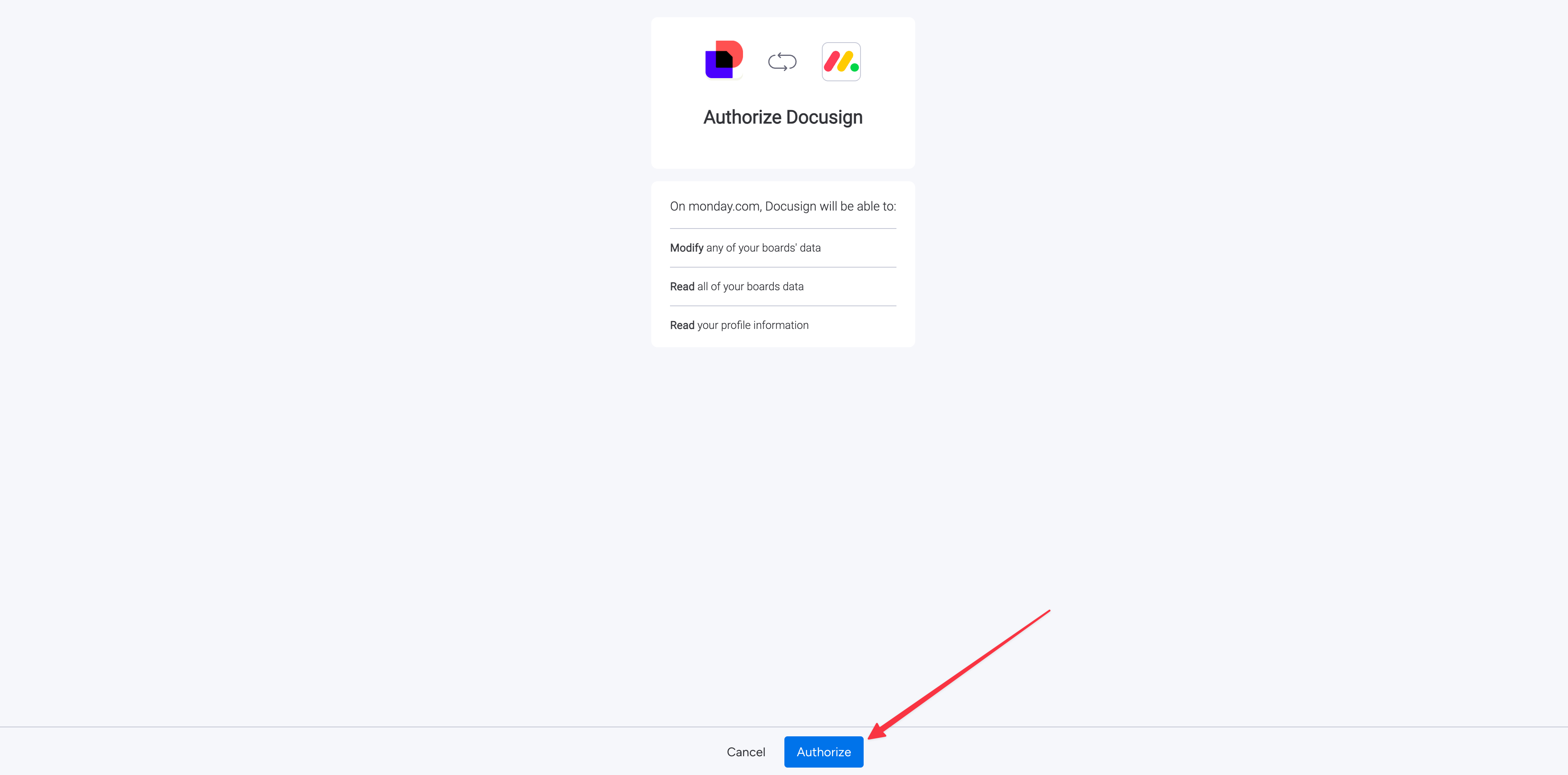
After installation, click the Sign In button to sign in to your monday.com account and authorize the app.
In the list of installed apps, the monday.com app should now appear as active:

How to Use the App
The monday.com extension for Docusign simplifies creating and updating tasks in monday.com as part of a Maestro workflow. After installing the app, several monday.com options appear when adding a new step in the workflow builder.
You can start by creating a new workflow:

In the workflow, when adding a new step, you’ll see three possible monday.com steps:
- Export documents to monday.com to upload your Docusign envelopes to a monday.com task.
- Writeback to monday.com to update envelope status on a monday.com task.
- Read from monday.com to read task information, such as a task ID, for use in other steps.

A common approach is to start with the Read from monday.com task to find the task to update. This can be done by providing a task ID or using other criteria, such as the board name and the email assigned to the task.
Click Configure on the step:

Now, configure the step to read a Task:

Click Next to go to the Which fields would you like to read? section. Here, you can select the fields you want to read from the task. For example, you can read the task ID and task name:

Click Next and configure the following rules:

It’s important to select the AND option, as this narrows down the criteria to find a specific task under a board and with a specific assignee, identified by their email. (If there are multiple email columns, the first one is used.)
Workflow fields can be any variables in the workflow. For example, you can define a Web Form to read these values.
Next, add the Get Signatures step and map Task Name (the assigned person’s name) to Name and Assigned To (the assigned person’s email) to Email. This step will collect the signature and assign the person’s name and email to the envelope.
Once the signer signs the envelope, the next step is to upload the envelope to the monday.com task. Add the Export documents to monday.com step to accomplish this. Here, the Record ID is the Task ID—this tells the step which task to upload the document to. The document will be uploaded to the Docusign Files column, which will be created if it doesn’t already exist.

Next, use Writeback to monday.com to update the status of the envelope on monday.com. In this case, we will only select the option to update:

Under Which fields are you writing to? map the Envelope Status variable returned from the Get Signatures step to the Docusign Envelope Status column on monday.com. This column will be created if it doesn’t already exist.

To make this work, provide the Task ID so the step can locate the correct task to update:

That’s it! With this workflow, you can easily upload envelopes and update your tasks using the monday.com app.
FAQ
Can I use custom column names for my Docusign status and envelopes?
Currently, this is not supported. The envelope status is written to the Docusign Envelope Status column, while the envelopes are uploaded to the Docusign Files column.
Why do I need to use the board name and signer email as inputs to the workflow?
The app works by finding and then updating a task. The board name and signer email can be used to locate the board of the task and then find the specific task assigned to the signer.
Alternatively, a task ID can also be provided instead of a board name and signer email.
Can the app create new tasks?
Yes, the Writeback to monday.com step supports creating new tasks. This is described in the task description:
Add a rule to update an existing record in monday.com. If there is no match or you don’t set a matching rule, a new record will be created.
You need to provide a Board Name, this name will be used to find a suitable board on monday.com. If no such board exists, an error will be thrown. However, if you provide a Task Name rule, a task with that name will be created; otherwise, a New task will be generated.
Support
If you encounter any issues with the app or have feedback, please do not hesitate to contact us at monday-support@thisdot.co.